What is a terminal?
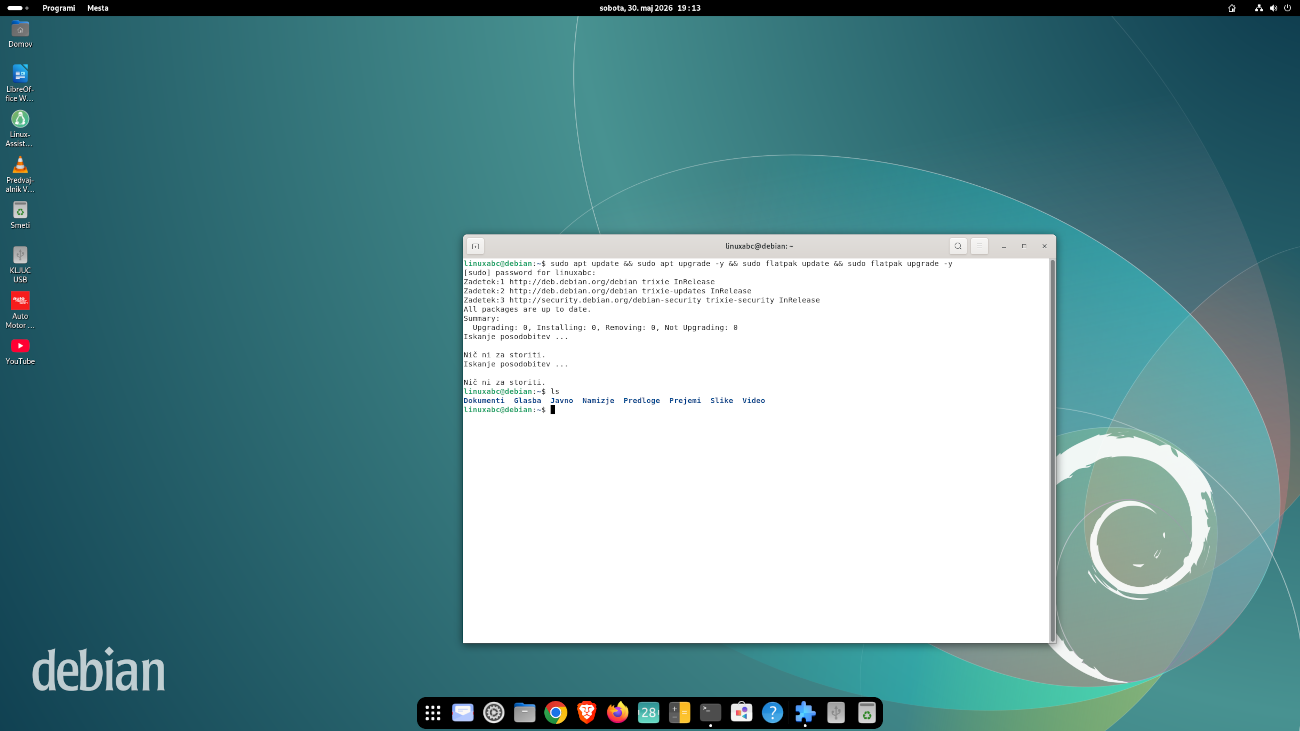
A terminal is an application where you type commands with the keyboard. Most everyday Linux tasks can also be done through the graphical interface, so you do not need to use the terminal all the time. It becomes very useful when you want to do something quickly, precisely or understand what the system is doing.
The terminal is nothing to be afraid of
It is simply another way to communicate with the computer. Instead of clicking a button, you type a command. You only need a few commands at first – you do not need to memorise everything.
Terminal, shell and Bash – what is the difference?
The terminal is the window where you type. The shell is the program that interprets and runs your commands. Bash is one of the most widely used shells on Linux and is a good place to start.
What does the terminal prompt mean?
You may see something like this before the place where you type:
saso@computer:\~$- saso – the logged-in user,
- computer – the computer's hostname,
- \~ – the user's home directory,
- $ – usually indicates a normal user shell.
A command often has three parts
You can read ls -l Documents as:
command ls +
option -l +
target Documents.
Before your first commands
- Linux is case-sensitive:
Documentsanddocumentsare different names. - The Tab key can often complete a file, directory or command name for you.
- The ↑ and ↓ arrow keys let you recall earlier commands.
- Ctrl + C often stops a command that is currently running.
- If a name contains a space, put it in quotes, for example
cd "My Documents".
Check a command before using sudo
sudo temporarily gives a command administrator privileges.
Do not blindly paste commands from websites or AI tools.
First make sure you understand what each part of the command does.
Your first commands
pwd – where am I?
pwdShows the current directory, for example /home/saso.
ls – what is in this directory?
lsShows files and directories in the current location.
ls -lShows a more detailed list.
ls -laAlso shows hidden files and directories together with details.
cd – move between directories
cd DocumentsMoves into the Documents directory.
cd ..Moves one level up.
cd \~Returns to your home directory.
mkdir – create a directory
mkdir practicetouch – create an empty file
touch notes.txtclear – clear the terminal display
clearThis clears the visible terminal window but does not erase your command history.
The Linux file system
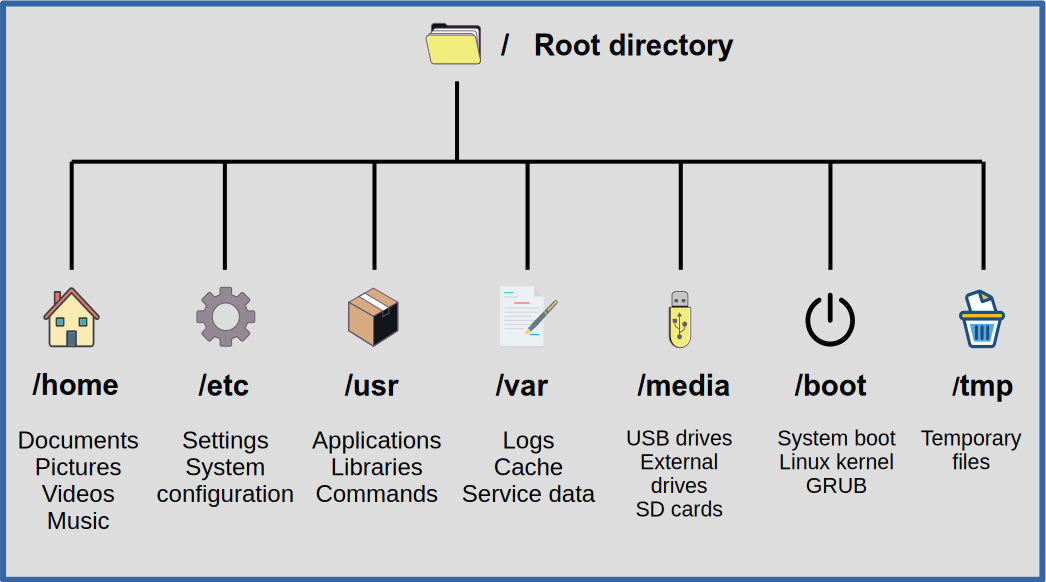
/.
Compared with Windows
Windows users often think in terms of the C:\\ drive.
Linux starts from the root directory /.
A user's personal files are usually stored in /home/username,
while external drives are commonly mounted under directories such as
/media or /run/media.
Working with files and directories
cp – copy
cp file.txt copy.txtcp -r directory1 directory2The -r option copies a directory and its contents recursively.
mv – move or rename
mv old.txt new.txtmv file.txt Documents/rm – remove
rm file.txtrm -i file.txtThe -i option asks for confirmation before removal and is useful while learning.
Be careful with rm
rm normally does not move a file to the Trash.
Commands that combine rm, -r and sudo
can be very dangerous if you do not understand their target.
Reading and searching file contents
cat – quickly display a short file
cat notes.txtless – read a longer file
less notes.txtYou can scroll through the file and press q to quit.
grep – search for text
grep "Linux" notes.txthead and tail – beginning and end of a file
head -n 5 notes.txttail -n 5 notes.txtfind – find files
find . -name "\*.txt"Searches the current directory and its subdirectories for files ending in .txt.
Package management
Linux distributions use package managers. Debian, Ubuntu, Linux Mint and Zorin OS mainly use APT, Fedora uses DNF, and openSUSE uses Zypper. You can also use your distribution's graphical software store for everyday software installation.
What does sudo apt install vlc mean?
- sudo – run the command with administrator privileges,
- apt – the package manager,
- install – the action,
- vlc – the package name.
APT – Debian, Ubuntu, Linux Mint, Zorin OS
sudo apt updateRefreshes package information from the repositories.
sudo apt upgradeUpdates installed packages.
sudo apt install vlcsudo apt remove vlcDNF – Fedora
sudo dnf upgradesudo dnf install vlcsudo dnf remove vlcZypper – openSUSE
sudo zypper refreshsudo zypper updatesudo zypper install vlcsudo zypper remove vlcYou do not need package-repair commands yet
Start with updating, installing and removing software. Troubleshooting commands are better used later when you understand the specific problem and the instructions you are following.
Flatpak
Flatpak is a more universal application packaging format that works across many Linux distributions. If you use Flathub, applications can often also be installed through a graphical software store.
flatpak updateUpdates installed Flatpak applications.
flatpak install flathub org.videolan.VLCInstalls VLC from Flathub.
flatpak uninstall org.videolan.VLCRemoves the Flatpak version of VLC.
System information and diagnostics
uname -a – kernel and system information
uname -afree -h – RAM usage
free -hdf -h – space on mounted file systems
df -hdu -sh \* – size of items in the current directory
du -sh \*lsblk – disks and partitions
lsblkShows storage devices, partitions and their basic layout.
uptime – how long the system has been running
uptimetop – processes and system load
topShows processes, CPU usage and memory usage. Press q to quit.
Networking
ping – test reachability
ping linuxabc.siSends test packets to the destination. Stop it with Ctrl + C.
ip addr – network interfaces and addresses
ip addrShows network interfaces and their IP addresses.
hostname – computer name
hostnameCommands that make terminal work easier
whoami – which user am I?
whoamihistory – previously used commands
history--help – quick help
ls --helpman – manual pages
man lsOpens a more detailed manual. Press q to leave it.
A small, safe practice exercise
You can practise in a temporary directory inside your home directory:
cd \~
mkdir linuxabc-practice
cd linuxabc-practice
touch notes.txt
ls -l
cp notes.txt copy.txt
mv copy.txt renamed.txt
ls -l
rm -i renamed.txt
rm -i notes.txt
cd ..
rmdir linuxabc-practice
The final rmdir command only removes an empty directory.
If notes.txt is still inside it, remove it first with
rm -i notes.txt.
Small exercises are the best way to learn
Practise inside a directory created only for learning. You will quickly see what each command does without touching important system files.
Conclusion
You do not need to memorise the terminal. It is more important to understand the basic logic: where you are, what you want to do, which file or directory is the target, and whether the command really needs administrator privileges.
If you remember only a few commands
For your first steps, pwd, ls, cd,
mkdir, cp, mv, careful use of
rm and basic system updates are enough.
You can look up everything else when you need it.